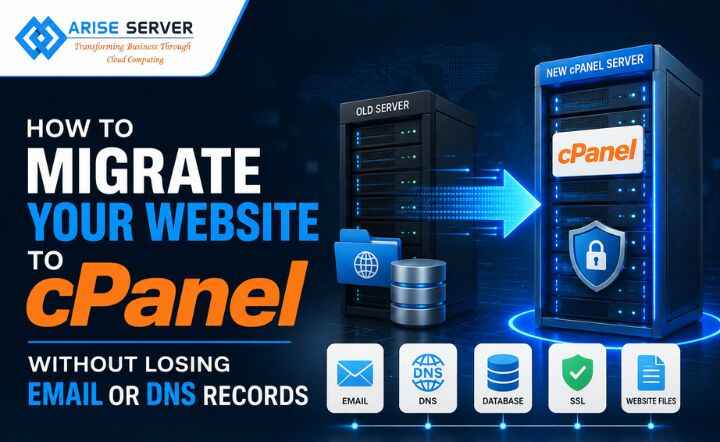
How to Migrate Your Website to cPanel Without Losing Email or DNS Records
Moving a website to a new server can look straightforward until you realize how much is connected behind the scenes, where the real challenge is making sure that the website still works, emails keep arriving, DNS records remain intact, and visitors do not suddenly land on an old or broken server while you migrate the website to cPanel.
While a safe migration means backing up your website and database, preparing the new cPanel environment, moving email accounts and data, preserving critical DNS records, and testing everything before traffic is redirected, migrating a website to cPanel safely requires a sequence that not only keeps the old environment available but also keeps the new one prepared and tested.
Having said that, a successful migration is therefore less about moving quickly and more about controlling the sequence of events. Be it following the right order or testing before you cut over, a cPanel migration becomes a controlled infrastructure change rather than a last-minute troubleshooting exercise.
What do you need to migrate to cPanel?
Before we move on to understanding what all you would need to migrate your website safely to cPanel, it is essential to know what it is exactly. Well, cPanel website migration basically means moving your website and its supporting services from its current hosting server or control panel to another cPanel-based environment without disrupting the website, email, or domain settings.
Moreover, before you begin, document everything currently running on the old server, which allows you to prevent a common migration problem of discovering after the DNS cutover that an important service or record was never moved. To avoid the same problem, here’s your pre-migration checklist:
Website files
- Document root and website directories
- Images and uploaded media
- Configuration files
- Subdomains and addon domains
- Redirects and rewrite rules
Databases
- MySQL or MariaDB databases
- Database users
- User permissions
- Connection credentials
- Database-dependent applications
- Mailboxes
- Forwarders
- Aliases
- Filters
- Existing mailbox messages
- Email client settings
Read More: How to Set Up MySQL Clustering for High Availability: A Step-by-Step Guide
DNS
- A and AAAA records
- CNAME records
- MX records
- TXT records
- SPF
- DKIM
- DMARC
- Subdomain records
- Verification records
Server and application configuration
- PHP version
- Required PHP extensions
- Cron jobs
- SSL certificates
- Application dependencies
- File and directory permissions
Backups
- Full website backup
- Database backup
- DNS record inventory
- Email migration plan
- Rollback copy of the existing environment
Moreover, the future-proof approach to cPanel migration is dependency mapping, so when you know which services your domain, website, and user rely on, then you can move what belongs on the new server while leaving everything else exactly where it needs to be.
VPS Server Plans
An ideal VPS solution for modern projects combines strong security, high-speed performance, and flexible, scalable configurations to match your evolving requirements.
How to migrate a website to cPanel?
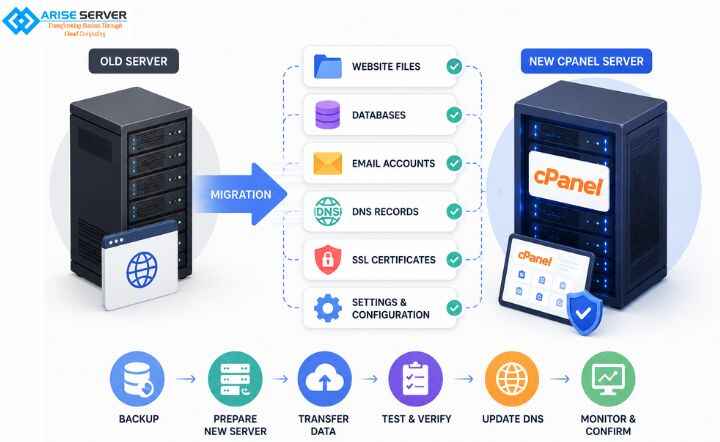
Now that we know what all to check before you migrate a website to cPanel, the next step lies in how to migrate a website safely. Where there’s a sequence, from backing up your website and preparing the new cPanel server to testing the new environment, remember that the exact tools might vary depending on your current hosting environments, but the sequence is essential.
- STEP 1: Backup the existing website
- STEP 2: Prepare the new cPanel server
- STEP 3: Transfer website files and databases
- STEP 4: Set up email
- STEP 5: Recreate and verify DNS
- STEP 6: Test before changing DNS
- STEP 7: Change DNS and monitor
Additionally, a successful migration is a controlled sequence, not a single switch. So, by completing each stage before moving to the next, the final DNS change becomes a handoff rather than a gamble.
Share Your Custum Server Requirements
How to achieve DNS migration without downtime?
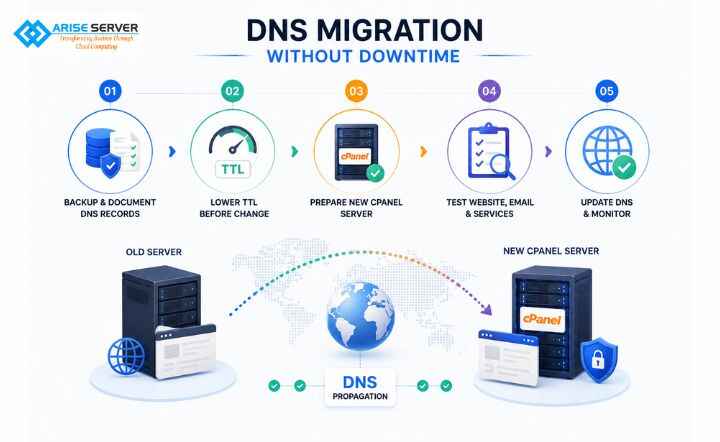
When you think of a hassle-free DNS migration without downtime, it starts with preparing the new server before changing live DNS. While the task is to make sure that your new cPanel environment is ready before visitors are directed to it, here’s how to achieve DNS migration without downtime:
| STAGE | ACTION |
| Before migration | Backup data and document DNS records |
| Lower TTL | Reduce TTL ahead of the DNS change |
| Prepare cPanel | Move files, databases, SSL, and email |
| Test | Check the website and critical services |
Apart from that, a well-planned cutover makes the DNS change feel like a handoff and not just an outage.
Common cPanel migration mistakes to avoid
Beyond everything, a successful cPanel migration is driven by what you avoid; small oversights can lead to broken websites, missing emails, or incorrect DNS routing.
Here are a few common cPanel migration mistakes to avoid when you migrate website to cPanel:
- Skipping backups
- Changing DNS too early
- Forgetting DNS records
- Ignoring email migration
- Not checking databases
- Decommissioning old server too soon
Whereas the fewer assumptions you make during migration, the fewer surprises you have after the migration.
Dedicated Server Plans
The ideal solution for large-scale projects delivers strong security, top-level performance, and customizable configurations.
Conclusion
In conclusion, a successful website migration to cPanel is not just about moving files from one server to another; rather, it is about making sure that your website, database, email, DNS, SSL, and connected servers continue working as expected.
Hence, move carefully, test thoroughly, and make the cutover uneventful; that is what a successful migration looks like.

FAQ’s
Visit Our Other Server Locations
Explore our global dedicated server locations with high performance, strong security, and scalable configurations tailored for your business needs.