

How to Right-Size RAM on a Server When Memory Gets Expensive
Memory has become the most expensive part of many servers. Server DRAM contract prices rose more than 60% in the first quarter of 2026 alone, and hosting providers passed much of that on. When RAM costs that much, paying for gigabytes you never use hurts.
The problem is that most people size RAM by feel. They pick 32 GB because 16 “felt tight” once, or because the last server had 32. Then the server runs for years at a fraction of that.
This guide shows how to measure what a Linux server really needs, how to avoid the classic misreadings, and how to cut memory use before you downsize. It’s written for VPS and dedicated servers running typical workloads: websites, databases, PHP or Node apps, mail and small containers.
Step 1: Read free correctly
Start with the command everyone runs:
free -h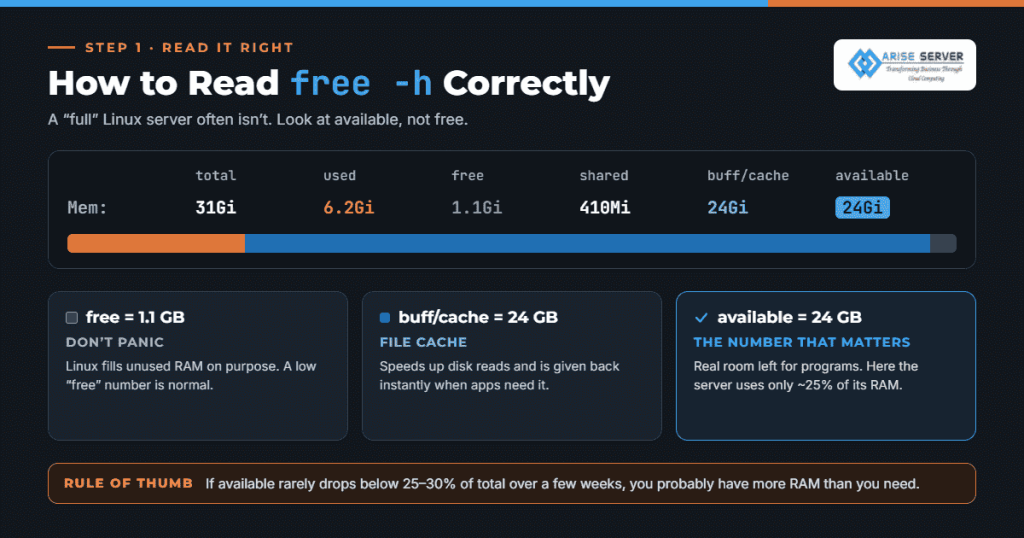
You’ll see something like this:
               total        used        free      shared  buff/cache   available
Mem:            31Gi        6.2Gi       1.1Gi       410Mi        24Gi        24Gi
Swap:          4.0Gi          0B       4.0Gi
New admins look at free (1.1 GB) and panic. Don’t. Linux deliberately fills unused RAM with file cache (buff/cache) to speed up disk reads. That cache is given back instantly when an application needs memory.
The number that matters is available. It estimates how much memory programs can use right now without the system swapping. In the example above, the server has 24 GB available out of 31 GB. It’s using about a quarter of its RAM for real work.
A rough rule: if available rarely drops below 25–30% of total over a few weeks of normal traffic, the server probably has more RAM than it needs.
Step 2: Measure over time, not once
A single free reading tells you about one moment. You need peaks: month-end reports, backups, traffic spikes, batch jobs, cron tasks at 2 a.m.
If sysstat is installed, sar already keeps history:
sar -r            # today's memory use
sar -r -f /var/log/sysstat/sa15   # a specific day
On RHEL-based systems, the files live in /var/log/sa/. If sar isn’t installed, add it and let it collect for two to four weeks before making a decision. Any monitoring tool you already use (Zabbix, Netdata, Prometheus with node_exporter) works too. Watch MemAvailable, not MemFree.
Also watch swap activity:
vmstat 5The si and so columns show pages swapped in and out per second. Some swap used is normal; Linux moves idle pages out over time. Constant swapping activity (non-zero si/so every few seconds) means the server is genuinely short of memory.
Dedicated Server Plans
Arise Dedicated Servers deliver powerful performance, reliable infrastructure, and flexible resources for businesses, high-traffic websites, applications, and demanding workloads.
Step 3: Check memory pressure
On kernels 4.20 and later, Linux reports pressure stall information (PSI). It tells you how much time tasks are spent waiting because of memory shortage, which is a far better signal than usage percentages.
cat /proc/pressure/memoryOutput looks like:
some avg10=0.00 avg60=0.00 avg300=0.00 total=1823412
full avg10=0.00 avg60=0.00 avg300=0.00 total=402113
some is the share of time at least one task was stalled in memory. full is the share of time all tasks were stalled. If these averages stay at or near zero, memory is not a bottleneck, however “full” the server looks. If some avg60 regularly sits above a few percent, you’re short, and cutting RAM would make things worse.
Step 4: Check for out-of-memory kills
If the kernel ever ran out of memory completely, it will have killed something:
journalctl -k | grep -i -E 'out of memory|oom-kill'
# or
dmesg -T | grep -i oom
No OOM events over months, low PSI and plenty of available memory together mean you have room to cut. OOM events mean you need to look at what’s using memory first, even if averages look fine.
Read Also: Why Server Prices Rose in 2026: The DRAM and SSD Shortage Explained
Step 5: Find out what’s using the memory
List the biggest processes by resident memory:
ps aux --sort=-rss | head -15The RSS column shows real memory used per process, in kilobytes. Be careful with many similar processes, like PHP-FPM workers or Apache children. They share libraries, so adding up RSS overstates the total. smem gives a fairer picture using PSS (proportional set size):
sudo apt install smem   # or dnf install smem
sudo smem -t -k -s pss | tail -15
On most web and app servers, three or four things use most of the RAM: the database, the PHP or app workers, a cache like Redis, and sometimes a Java process. That’s where tuning pays off.
Step 6: Tune the big memory users
Before you downsize, make sure each service is using an appropriate amount. Default settings are often far off in one direction or the other.
MySQL / MariaDB. The InnoDB buffer pool is usually the largest single block of memory on a database server. Check how much of it is actually holding data:
SHOW GLOBAL STATUS LIKE 'Innodb_buffer_pool_pages_%';
SHOW VARIABLES LIKE 'innodb_buffer_pool_size';
If pages_free stays high for weeks, the pool is bigger than your working set. A common guideline on a dedicated database server is 50–70% of RAM, but the right size is “enough to hold the data you actually read”, which you can see from these counters. If you run replicated or clustered databases, sizing applies to every node, which multiplies savings. See our guide to MySQL clustering for that setup.
PHP-FPM. The pm.max_children setting decides how many PHP workers can run at once. Set it from real numbers:
ps -o rss= -C php-fpm8.3 | awk '{sum+=$1; n++} END {print sum/n/1024 " MB avg"}'(Adjust the process name to your PHP version.) Then: max_children ≈ memory you can give PHP ÷ average worker size. If each worker uses 60 MB and you can spare 3 GB, about 50 workers is the ceiling. Setting it to 200 “to be safe” just invites OOM kills under load.
Java. The JVM will happily grow to whatever -Xmx allows. Set heap size based on observed use plus headroom, not the full server RAM.
Redis. Set maxmemory and an eviction policy so the cache can’t quietly eat the server.
Your web server. Event-driven servers like Nginx and LiteSpeed generally use far less memory per connection than Apache’s prefork model. If you’re still on prefork with mod_php, switching can free a surprising amount. Our LiteSpeed vs Apache vs Nginx comparison covers the trade-offs.
VPS Server Plans
An ideal VPS solution for modern projects combines strong security, high-speed performance, and flexible, scalable configurations to match your evolving requirements.
Step 7: Use swap sensibly
Swap isn’t a replacement for RAM, but it’s a useful safety net. A small swap file (1–4 GB on most servers) gives the kernel somewhere to put pages that haven’t been touched in hours, which leaves more real RAM for active work.
Some practical settings:
# lower tendency to swap active pages (default is often 60)
sudo sysctl vm.swappiness=10
Add it to /etc/sysctl.d/ to keep it after reboot. On memory-tight VPS plans, zram (compressed swap in RAM) or zswap (a compressed cache in front of disk swap) can stretch memory further, at the cost of some CPU. They’re worth testing on small servers where every gigabyte counts.
What you don’t want is a server that relies on swap for normal operation. If vmstat shows steady swap traffic, you need more RAM or less load, not more swap.
Step 8: Put limits on services
On servers running several things at once, one runaway process can push out everything else. systemd can cap memory per service:
sudo systemctl edit myapp.service[Service]
MemoryHigh=1500M
MemoryMax=2GMemoryHigh slows the service down and reclaims memory when it passes the soft limit. MemoryMax is the hard ceiling. Containers have the same controls (–memory in Docker, resource limits in Kubernetes). Limits make memory use predictable, which makes sizing much easier.
Step 9: Pick the new size
Once you have a few weeks of data and the tuning is done, sizing is simple arithmetic:
- Take your peak real usage: total RAM minus the lowest available value seen.
- Add 20–30% headroom for growth and unexpected spikes.
- Round up to the nearest plan size.

Example: a 64 GB server whose available never dropped below 38 GB. Peak real use is about 26 GB. With 30% headroom, that’s around 34 GB, so a 32 GB plan is tight and a 48 GB plan (if offered) is comfortable. Many teams in this position move to 32 GB and tune slightly more, or step down one size rather than two.
Don’t size so tight that the file cache disappears completely. A database server with no spare RAM for page cache will hit the disk more often and slow down, even if nothing is killed.
When you shouldn’t cut RAM
Some workloads genuinely need lots of memory, and squeezing them costs more in performance than it saves:
- In-memory databases and large caches (Redis, Memcached at scale)
- Analytics and search engines like Elasticsearch or ClickHouse
- Virtualisation hosts running many VMs
- AI inference servers loading large models into system RAM
- Database servers whose working set has grown with the business
For these, the better question is whether the memory is used efficiently, and whether another server type fits. Arise’s high-grade servers are built for memory-heavy workloads.

Make it a routine
Right-sizing isn’t a one-off. Traffic changes, apps grow, settings drift. Review memory every quarter alongside CPU and storage. This is the core of FinOps for hosting: match what you pay for to what you use, and repeat.
If memory problems show up as slowdowns or crashes rather than clean numbers, our guide to troubleshooting common dedicated server issues helps narrow down the cause. On an Arise VPS, ask our team about moving to a plan that matches your measured usage. Our Linux admin team can do the measurement and tuning for you.
FAQ’s
Visit Our Other Server Locations
Explore our global dedicated server locations with high performance, strong security, and scalable configurations tailored for your business needs.